What Overheating Really Means on a MacBook (And How to Save It)
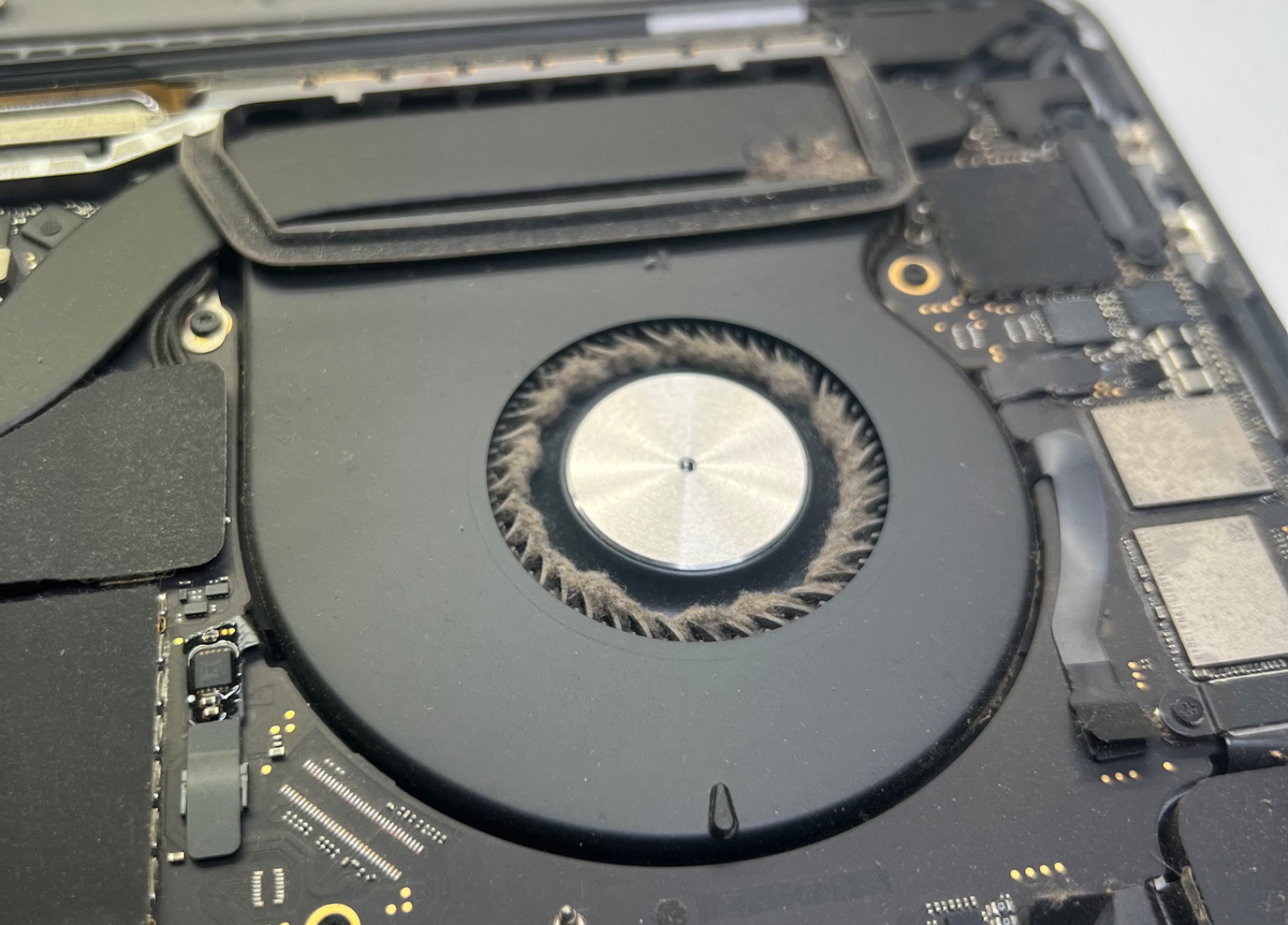
Does launching Google Chrome turn your 2018 MacBook Pro into a roaring engine? Discover the true science of MacBook overheating, hidden local causes in Accra, and actionable fixes.
Introduction: The World War II Chopper on Your Desk
You own a 2018 MacBook Pro, a premium piece of engineering built to handle intense workflows. Yet, the simple act of launching Google Chrome suddenly makes your system feel heavily dragged down, destroying your performance. Worse, your dual internal cooling fans start spinning furiously, sounding less like a sleek modern laptop and more like a loud chopper from the Second World War.
When this happens, it is natural to stare helplessly at your screen and ask yourself, “What am I doing wrong?”
But if you want to restore your machine's lightning-fast efficiency and protect its components, that is the wrong question. You shouldn't be asking what you are doing wrong—you need to ask: “What am I ignoring?”
Decoding the Science: What Overheating Actually Means
To fix a hot laptop, we must first dispel a common myth: "Overheating" isn't just a sign that your laptop is working hard; it is a sign that your laptop is failing to cool itself.
When you run powerful tools and multi-layered processes at full efficiency, your Central Processing Unit (CPU) draws a massive amount of electrical power. In computing physics, power consumption directly equals thermal energy generation.
Your MacBook relies on three core pillars to escape this heat:
1. The Thermal Paste: A compound that bridges the physical gap to transfer heat away from the silicon CPU.
2. The Copper Heat Pipes: Thermal highways that channel heat toward the vents.
3. The Fans: Micro-turbines that blow the hot air completely out of the chassis.
When your MacBook "overheats," it means your system's heat dissipation mechanisms can no longer remove that thermal energy faster than the CPU creates it. To prevent permanent, catastrophic hardware destruction, the Intel architecture triggers a self-preservation protocol known as thermal throttling. Your system intentionally slows down its clock speed to cool things off, resulting in that agonizing lag on your daily workflow.
The Hidden Culprits: Why Your MacBook Is Choking
While a heavy browser is an easy target, a hot laptop is usually caused by a combination of software bottlenecks and environmental wear. If your fans won’t stop spinning, you are likely ignoring these critical variables:
1. The Local Environment (The Accra Factor)
In tropical, coastal hubs like Greater Accra, ambient room temperatures are naturally higher. Furthermore, fine dust particles from the Harmattan season or coastal air mix with ambient moisture to form a sticky, felt-like blanket inside your MacBook’s chassis. This completely chokes your fans and causes your factory thermal paste to dry up and crack much faster than normal.
2. The Chrome Trap & Rogue Background Processes
Google Chrome is notoriously resource-heavy. It assigns separate system processes to every single tab and extension. A single open tab running unoptimized scripts can silently spike your CPU usage to 100%, causing instant heat build-up.
3. Outdated macOS & Corrupted SMC / NVRAM
Sometimes the issue isn't physical heat, but malfunctioning thermal management. If your System Management Controller (SMC)—which controls fan speeds and thermal tracking—gets corrupted or falls behind on software updates, your fans may spin out of control even when the laptop isn't genuinely hot.
4. Indexing Overload (Spotlight & iCloud)
If you have recently transferred a massive amount of files, connected a new external drive, or updated your OS, your MacBook triggers background indexing via Spotlight. This forces your storage drive and CPU to run at max capacity for hours behind the scenes without your knowledge.
Reclaim Your Performance: Actionable Useful Tips
Stop ignoring the warning signs before constant high temperatures permanently damage your logic board or cause your lithium-ion battery to swell. Take these steps to cool your machine down immediately:
Software Tweaks
Audit Activity Monitor: Open your Utilities folder, launch Activity Monitor, and sort by % CPU. Locate any rogue background processes or memory leaks and terminate them instantly.
Switch Browsers or Manage Tabs: If you must use Chrome, install tab-suspension extensions (like The Marvellous Suspender) to sleep inactive tabs, or swap to Safari, which is heavily optimized for macOS battery and thermal efficiency.
Reset the SMC: If your fans are acting erratic, shut down your MacBook, hold Shift + Control + Option and the Power Button for 10 seconds, then release. This resets your hardware's thermal controller.
Physical & Environmental Adjustments
Elevate and Ventilate: Never use your MacBook on a bed, pillow, or carpet. This suffocates the intake and exhaust vents hidden beneath the hinge. Always use a hard, flat surface or an aluminum laptop stand to optimize passive airflow under the laptop.
Work in Ambient Coolness: Whenever doing heavy processing like video rendering or compiled coding, try to work in an air-conditioned environment to assist the machine’s passive heat exchange.
Professional Maintenance
Schedule an Internal Cleaning: If your laptop is more than two years old, it needs an internal service. Book an appointment with us at Dreytech in Accra at least once a year to blow out trapped Harmattan dust and replace dry factory paste with high-end compounds like Arctic MX-4 or Noctua NT-H1.
Tags: MacBook overheating fix Accra, laptop repair Ghana, 2018 MacBook Pro fan noise, MacBook thermal throttling, Accra tech support
Need expert support?
Book a Dreytech diagnosis before a small issue becomes expensive.
Bring your iPhone, MacBook, iPad, Apple Watch, or AirPods in for a careful inspection and a clear repair recommendation.
Book Service